Upgrade a universe
YugabyteDB is a distributed database that can be installed on multiple nodes. Upgrades happen in-place with minimal impact on availability and performance. This is achieved using a rolling upgrade, where each node is upgraded one at a time. YugabyteDB automatically re-balances the universe as nodes are taken down and brought back up during the upgrade.
If you have issues after upgrading a universe, you can roll back in-place and restore the universe to its state before the upgrade.
You upgrade a universe in the following phases:
- Upgrade - Update the nodes in the universe to the new database version.
- Monitor - Evaluate the performance and functioning of the new version.
- Rollback - If you encounter any issues while monitoring the universe, you have the option to roll back in-place and restore the universe to its state before the upgrade.
- Finalize - Depending on the changes included in the upgrade, you may need to finalize the upgrade to make the upgrade permanent. The system will tell you if this step is necessary. After finalizing, you can no longer roll back.
For more information, refer to Upgrade FAQ.
Perform the upgrade
For YugabyteDB upgrades in YugabyteDB Anywhere
You can only upgrade from a stable version to another stable version, or from a preview version to another preview version. Optionally, you can set a runtime flagyb.skip_version_checks, to skip all YugabyteDB version checks during upgrades. For more information, contact Yugabyte Support.
You perform a rolling upgrade on a live universe deployment as follows:
-
Navigate to Universes and select your universe.
-
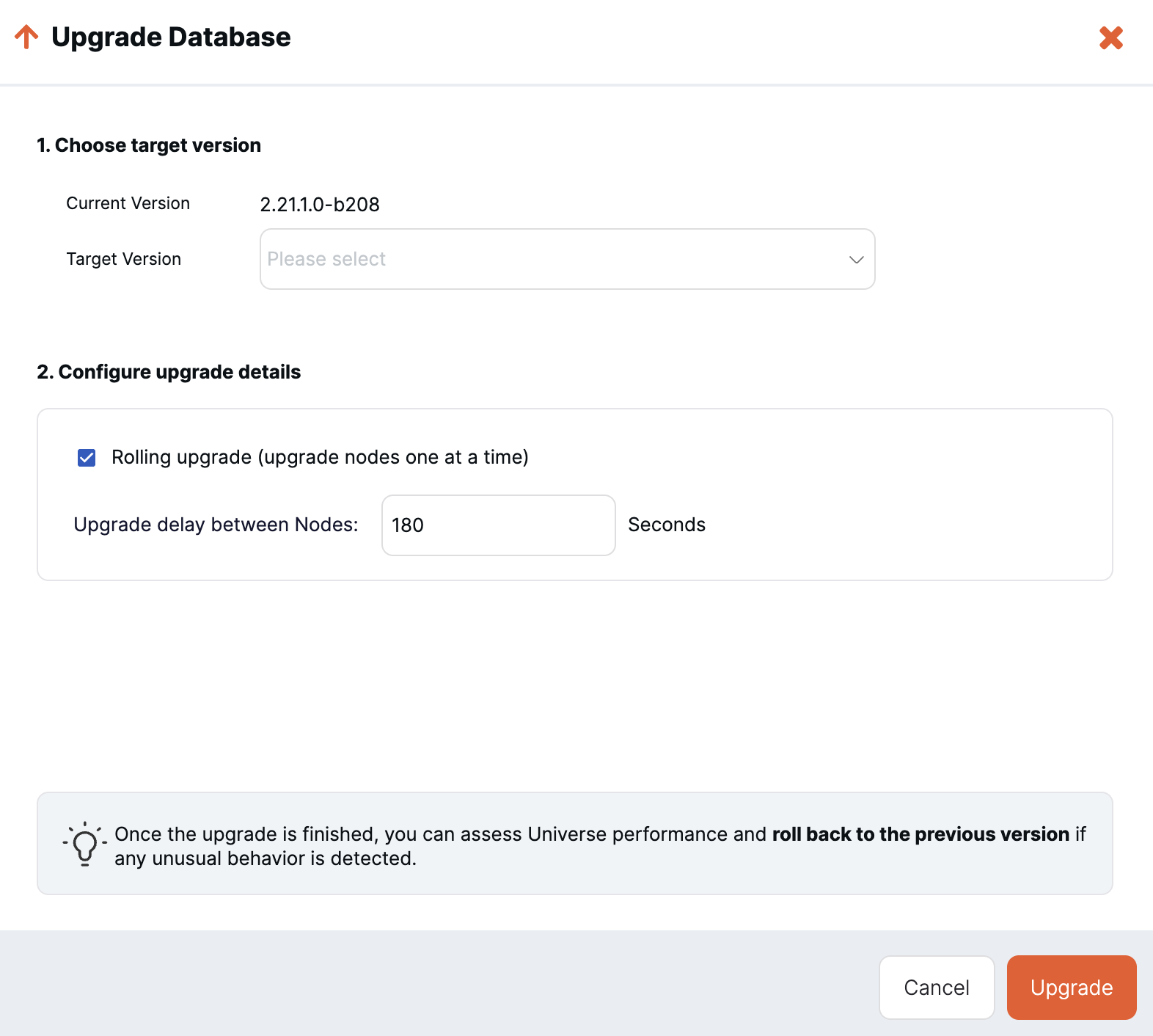
Click Actions > Upgrade Database Version to display the Upgrade Database dialog.
-
Choose the target version you want to upgrade to.
Downgrading
Currently, you cannot downgrade a universe to an older YugabyteDB release. For assistance with downgrades, contact Yugabyte Support.If you choose a target version where you will need to finalize the upgrade, YugabyteDB Anywhere displays a message to that effect.
-
Choose the Rolling Upgrade option.
Select rolling upgrade to minimize application disruption (at the expense of a longer node-by-node iterative operation). Deselect this option if application downtime is not a concern, and you favor speed; the database cluster is taken offline to perform the upgrade.
-
If you are performing a rolling upgrade and your universe supports batched rolling restart, specify the maximum number of nodes to process per batch.
-
If you are performing a rolling upgrade, specify the delay between node upgrades.
The delay allows the newly restarted node to stabilize before proceeding to the next node. For example, it may take some time for the overall query performance to return to the baseline as leader roles move away and back to this node because read caches take time to warm up. The delay value implies the minimal amount of time allocated for all the operations with the node including, stop and start. This is a heuristic that varies according to the workload profile of the application hitting the database.
For a database with very little activity, it's typically safe to set this duration to as low as 0 seconds (for example, the cluster is new and has little data, no leaders getting re-elected, and no database smart clients needing updates to cluster membership).
For a database with a lot of data and activity, you may want to increase the 180 second default, to wait for tablet load-balancing to stabilize before proceeding to the next node.
-
Click Upgrade.
YugabyteDB Anywhere starts the upgrade process, and you can view the progress on the Tasks tab.
Upgrade manually-provisioned on-premises universe
If you are upgrading a manually-provisioned On-Premises universe from a database version prior to 2.18.0 to a version at 2.18.0 or later, you must additionally manually install YB Controller (YBC) after the otherwise-automated software upgrade procedure completes.
To install YBC, call the following API after the software upgrade:
curl --location --request PUT '<YBA-url>/api/v1/customers/<customerID>/universes/<UniverseID>/ybc/install' \
     --header 'X-AUTH-YW-API-TOKEN: <YBA-api-auth-token>'
To view your Customer ID and API Token, click the Profile icon in the top right corner of the YugabyteDB Anywhere window.
You can view your Universe ID from your YugabyteDB Anywhere universe URL, as follows:
https://<YB-Anywhere-IP-address>/universes/<universe-ID>
Monitor the universe
Once all the nodes have been upgraded, monitor the universe to ensure it is healthy:
- Make sure workloads are running as expected and there are no errors in the logs.
- Check that all nodes are up and reachable.
- Check the performance metrics for spikes or anomalies.
If you have problems, you can roll back during this time.
For upgrades that require finalizing, you can monitor for as long as you need, up to a maximum recommended limit of two days to avoid operator errors that can arise from having to maintain two versions.
A subset of features that require format changes will not be available until the upgrade is finalized. Also, you cannot perform another upgrade until you have finalized the current one.
If you are satisfied with the upgrade:
-
For upgrades that do not require finalizing, the upgrade is effectively complete.
-
For upgrades that require finalizing, proceed to Finalize the upgrade.
Roll back an upgrade
If you aren't satisfied with an upgrade, you can roll back to the version that was previously installed.
To roll back an upgrade, do the following:
-
Navigate to Universes and select your universe.
-
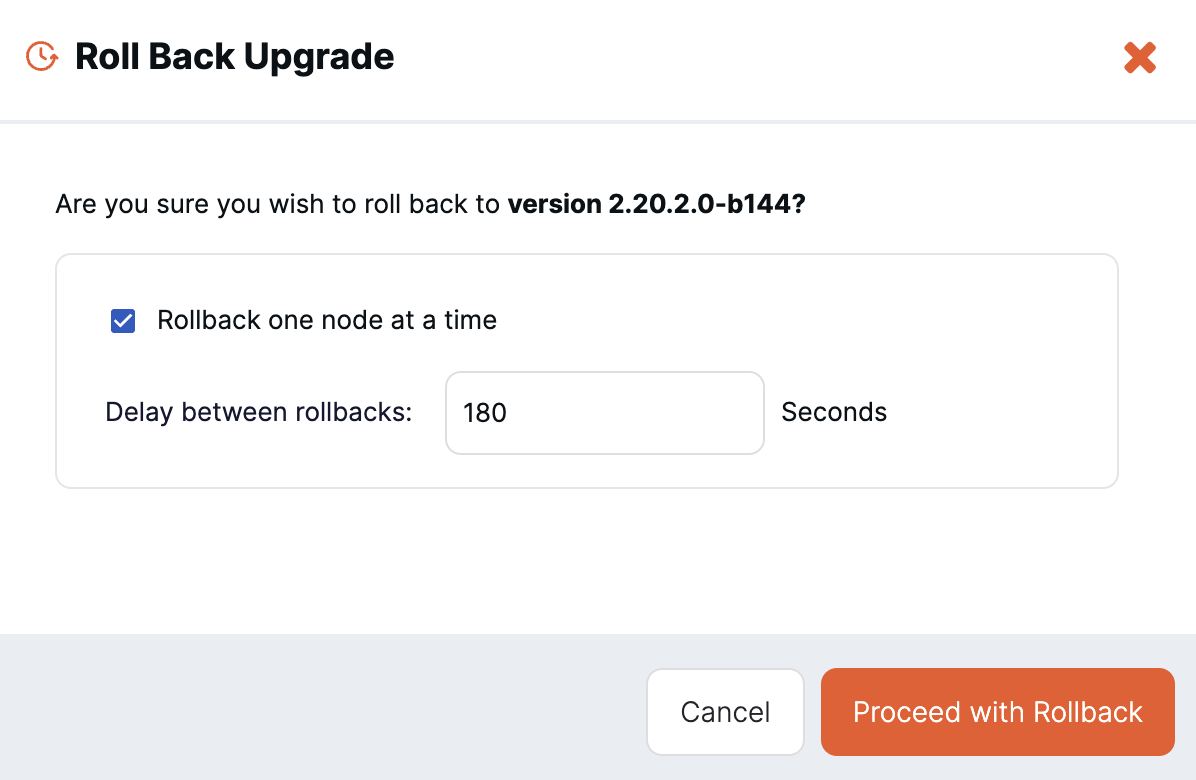
Click Actions > Roll Back Upgrade to display the Roll Back Upgrade dialog.
-
Choose the Roll back one node at a time option and set the delay between nodes restarting.
Select this option to minimize application disruption (at the expense of a longer node-by-node iterative operation). Deselect this option if application downtime is not a concern, and you favor speed; the database cluster is taken offline to perform the upgrade.
-
If you are rolling back one node at a time, specify the delay between node upgrades.
-
Click Proceed With Rollback.
YugabyteDB Anywhere starts the rollback process, and you can view the progress on the Tasks tab.
Finalize an upgrade
If your upgrade requires finalizing, the universe has a status of Pending upgrade finalization.
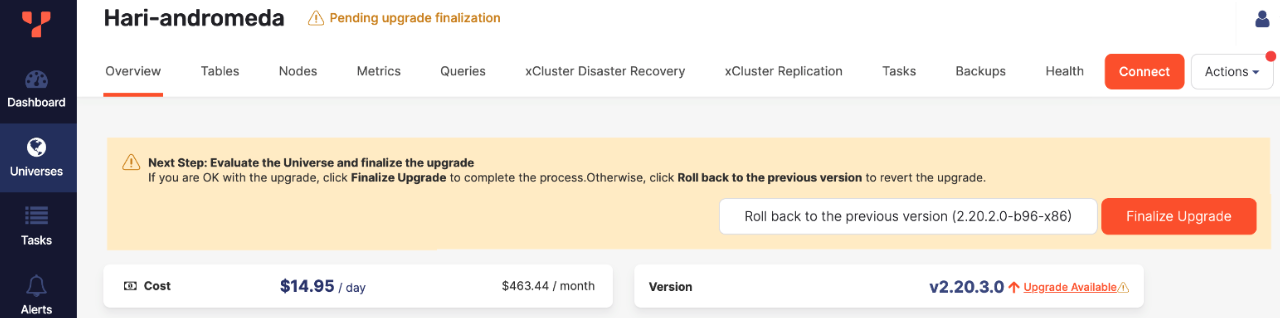
You have the option of rolling back, or finalizing. Note that you can't roll back after you finalize.
To finalize an upgrade, do the following:
-
Navigate to Universes and select your universe.
-
Click Finalize Upgrade.
-
Click Proceed to finalize the upgrade to confirm.
Upgrades with xCluster and xCluster DR
During the upgrade process, xCluster Disaster Recovery continues to function, with the following caveats:
- Failover is not available while the DR replica is being upgraded.
- Switchover is only available after the upgrade is finalized on both the DR standby and the DR primary. This is due to the requirement that a DR target must always be the same or newer than the DR primary.
Use the following guidance when upgrading universes in xCluster replication or with xCluster Disaster Recovery (DR).
Upgrade xCluster DR and unidirectional xCluster
Upgrade the target (DR replica) before the source (DR primary). After the target universe is upgraded and finalized, you can proceed to upgrade the source universe.
In v2025.1.2.0 or later, YugabyteDB Anywhere automatically disables Point-in-Time Recovery (PITR) schedules associated with transactional xCluster at the start of an upgrade. This lasts until the upgrade is either successfully finalized or rolled back. Replication continues to work.
Note
xCluster replication requires the target universe version to be the same or later than the source universe version. Setup of a new xCluster replication will fail if this check fails. Existing replications will automatically pause if the source universe is finalized before the target universe.To upgrade universes in DR or transactional xCluster, the sequence is as follows:
-
Upgrade the target (DR replica).
-
Validate that reads work on the target.
-
Finalize the upgrade on the target.
-
Upgrade the source (DR primary).
-
Perform validation tests (Monitor phase).
Perform any application-level tests as needed (including, if needed, application-level failovers).
-
Finalize the upgrade on the source.
DR failover is available after step 3; DR switchover is available after both universes are finalized.
Upgrade bidirectional xCluster
If you have bidirectional xCluster replication, then you should upgrade and finalize both universes at the same time. Perform the upgrade steps for each universe individually and monitor both of them. If you encounter any issues, roll back both universes. If everything appears to be in good condition, finalize both universes with as little delay as possible.
The sequence is as follows:
-
Upgrade B.
-
Upgrade A.
-
Perform validation tests (Monitor phase for both clusters).
Perform any application-level tests as needed (including, if needed, application-level failovers).
Note that any features that rely on PITR are not possible during the monitoring phase.
-
Finalize the upgrade on A, and finalize the upgrade on B. Do these as near simultaneously as possible.
Learn more
For internal details about the steps involved in a YugabyteDB rolling upgrade, refer to Upgrade a deployment.